
This page is to walk you through the process of submitting a nomination
Navigation
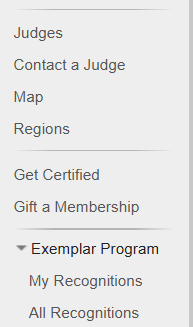
Step 1) Log into apps.magicjudges.org
Step 2) Locate Exemplar Program in the left hand menu and expand the menu
Step 3) Select My Recognitions
My Recognitions
The My Recognitions Page is divided into 4 sections:
- Current Window Close Date – Only displayed if a Wave is currently open
- Pending Recognitions – This section is where you can see how many recognitions you have remaining, as well as create/edit/delete nominations.
- Past Recognitions of Others – If you have submitted any recognitions in other waves, they will be here.
- Past Recognitions Received – This where your colleagues talked about the good things you did in their recognitions.
Recognition Window
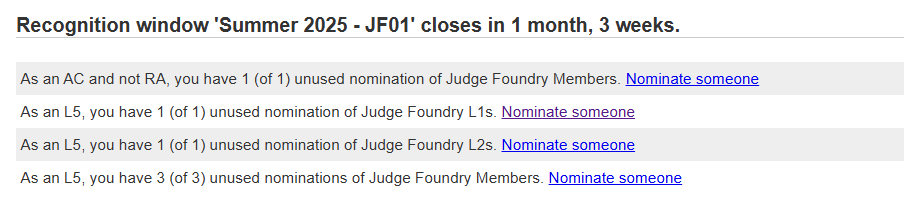
The Recognition Window screen will tell you how many recognition slots you have and allow you to use them to recognize others.
4) Clicking Nominate Someone will take you to another screen to enter your recognition
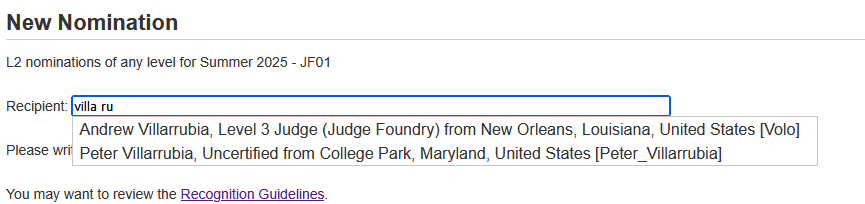
To utilize this page, begin by clicking into the ‘Recipient’ box at the top. Here, you can enter part or all of the judge’s name, and the system will assist in locating the desired judge. Once identified, select the judge from the list. Please note that while the recipient pick list allows you to choose any judge, the system will validate the judge’s level against the associated slot upon submission.
Step 5) Enter your recognition.
It is highly recommended to draft your nomination in a separate text editor (Notepad, Keep, Microsoft Word, ect). After following the guidelines to complete your nomination, copy and paste the content into the box below. Please be aware that if you accidentally navigate away from the page, refresh it, or experience a power outage, your information will not be saved. The data is only saved once you click ‘Submit’.
Step 6) Select the language the nomination is written in.
Step 7) Click Submit
Recipients do not see submitted recognition until after a recognition wave ends, recognitions have been reviewed and published.
Pending Recognitions
Once a recognition has been made, it will sit in the Pending Recognition section until the save is closed
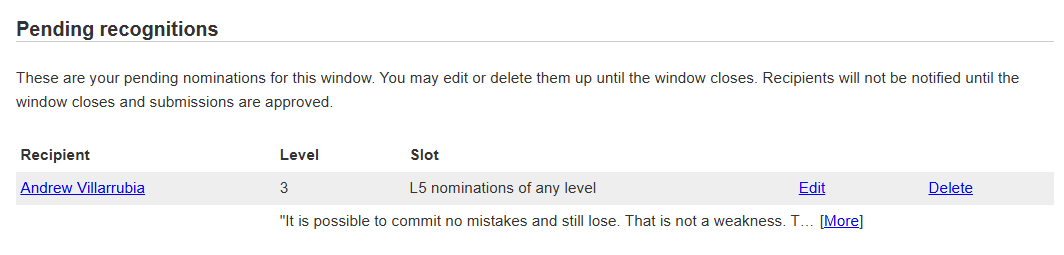
Until the wave is closed, recognitions can be edited or deleted.
Editing Nominations post publication
As a general rule, nominations cannot be edited after a wave ends. Additionally the Exemplar team will not edit nomination text. Your words are yours.
However, there is one exception. Occasionally Judges will go through a transition where either their name, pronouns, or both will change. In those circumstances, the Exemplar team may edit a nomination to replace a name with the new name, or replace pronouns with current pronouns. This edit will only be done at the request of the author or the recipient. Any further changes to recognition text are not permitted. Recipients of recognitions are allowed to request received recognitions be deleted from Exemplar.